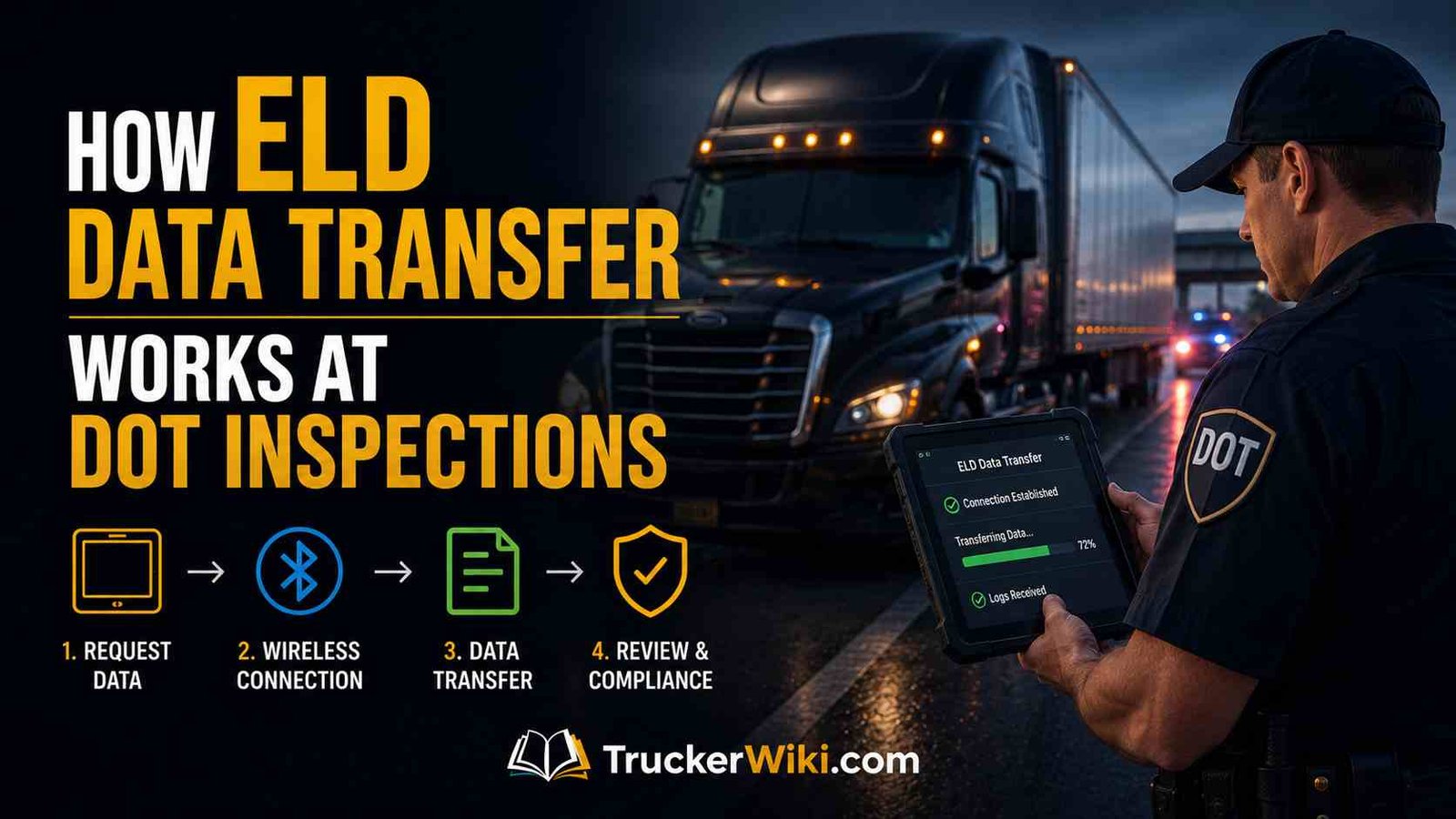
How ELD Data Transfer Works at DOT Inspections
At a roadside DOT inspection, a driver must transfer the current day and the previous 7 days of ELD records to an authorized safety official on demand. Under 49 CFR Part 395 Subpart B Appendix A Section 4.9.1, every compliant ELD must support at least one complete transfer option: the telematics option (web services and email) or the local transfer option (USB 2.0 and Bluetooth). The driver must be able to initiate that transfer before the inspection, not during it.
A driver who cannot complete the transfer is not merely cited for a procedural failure. Under 49 CFR 395.22(e), the inability to transfer records is an enforcement event independent of what the records actually contain. A driver with clean logs who cannot produce them electronically on request faces the same OOS exposure as a driver with a genuine HOS violation. Understanding how the transfer works in practice is as important as keeping compliant records.
Data transfer is one part of a broader ELD compliance picture. For the full framework covering who must use an ELD, what constitutes a compliant device, malfunction procedures, and carrier obligations, see the ELD Mandate Explained pillar article. For a complete list of operations where an ELD is not required at all, see the Who Needs an ELD? Full Exemptions List 2026 article. These three articles form the core ELD compliance reference for drivers and carriers operating under daily inspection risk in any jurisdiction.
The Two Transfer Options and What Each Requires
The FMCSA ELD Appendix A Section 4.9.1 defines two transfer options. Every compliant ELD must support at least one complete option. The word “complete” is the critical detail that most compliance articles miss.
Option 1: Telematics. To support this option, an ELD must support BOTH web services AND email. These are not interchangeable choices within the option; both are required. An ELD that supports only web services but not email does not fully satisfy the telematics option. An ELD that supports only email but not web services similarly falls short. The device must be capable of both claiming telematics compliance.
Option 2: Local transfer. To support this option, an ELD must support BOTH USB 2.0 AND Bluetooth. Again, both methods are required together. A device that pairs via Bluetooth but does not have USB capability does not satisfy the local transfer option.
Per FMCSA FAQ77 (March 2022), a manufacturer must select at least one complete option. Manufacturers may offer additional methods beyond their chosen option if they choose. Most modern ELDs on the market support both telematics and local transfer, giving drivers four methods available during any inspection.
Carriers should verify which options their specific registered device supports before deployment, because a device that supports only telematics methods may leave drivers unable to transfer if internet connectivity is unavailable at the roadside.
At a roadside inspection, an officer may request either transfer option. The driver does not choose which option the officer uses; the officer directs the method. Drivers who are only practiced in one method and unfamiliar with the other are vulnerable if the officer requests the method the driver has not used.
Carriers that deploy ELDs should verify both the device’s supported transfer options and that each driver assigned to the vehicle has practiced all available methods. This is particularly relevant when a fleet upgrades devices or when a driver switches vehicles.
A driver accustomed to a telematics-only ELD who is assigned to a local-transfer-only device on a substitute trip has no familiarity with the USB or Bluetooth process and will face challenges in an inspection situation.
The ELD mandate requires registered devices; it does not require uniform device experience across a fleet. That gap in driver familiarity is a carrier-level compliance responsibility, not a device specification issue.
Device onboarding should include, at a minimum, a single end-to-end test of each supported transfer method before the driver operates the vehicle in revenue service. That test takes under five minutes and eliminates the most preventable source of failed transfers at the roadside: a driver who has never used the transfer function on their specific device before being asked to demonstrate it to an officer at a weigh station.
How the Telematics Transfer Works
The telematics option transfers ELD data wirelessly from the device to FMCSA’s system through one of two methods: web services or email.
Web services transfer. The ELD connects independently to the internet and transmits the output data file directly to FMCSA’s web service endpoint. The connection must be reliable and capable of operating at a roadside location, not just in areas with strong Wi-Fi coverage.
Per FMCSA FAQ on ELD technical specifications, a device that depends on Wi-Fi being present at the roadside or that offers only a limited coverage area does not meet the telematics requirement. The ELD must be capable of independent internet connectivity, such as a cellular data connection built into the device or paired smartphone.
When a web services transfer is initiated, the driver typically selects the transfer option on the ELD display and confirms the officer’s request. The device connects to its cellular or data network and transmits the output file to FMCSA’s server. The officer’s inspection software then retrieves the data from FMCSA’s system. The driver is not handing the officer a file directly; the data routes through FMCSA’s central repository.
Email transfer. The ELD sends the output data file as an attachment to an email address pre-programmed by the ELD vendor. The vendor-specific email address is stored in the device and is not editable by the driver. When the officer requests an email transfer, the officer provides the driver with a routing code.
The driver enters this routing code into the ELD before initiating the send. The routing code identifies the specific inspection event so FMCSA can associate the received file with the correct inspection record. Without the routing code, the file reaches FMCSA’s system but cannot be linked to the officer’s inspection.
The driver does not send the email to the officer’s personal email address. The email goes to the FMCSA-registered address in the device, carrying the routing code in the subject or body. Drivers who have never practiced this process should test it before any inspection occurs, because the routing code entry step surprises drivers who assume email transfer means typing in an email address manually.
How the Local Transfer Works
The local transfer option covers USB 2.0 and Bluetooth. The underlying mechanism of each is less straightforward than it appears.
USB 2.0 transfer. The driver connects a USB 2.0 cable from the ELD device to the officer’s inspection laptop or tablet. The ELD writes the output data file to the USB connection, and the officer’s device reads it directly. This is a physical cable transfer that does not require internet connectivity on the driver’s side, making it a reliable backup when cellular or Bluetooth connectivity fails. The requirement is that the driver must have a compatible USB 2.0 cable in the cab. An ELD that supports USB transfer but whose driver has never carried a cable is effectively without USB capability at the roadside.
Bluetooth transfer. This method works differently from what most drivers expect. Per FMCSA FAQ79 (March 2022), when a Bluetooth transfer is initiated at a roadside inspection, the ELD pairs with the officer’s device via Bluetooth and then uses the officer’s internet connection to submit the output file via FMCSA’s web services. The Bluetooth connection is not a direct device-to-device file transfer. The ELD routes the data through FMCSA’s central server using the network access the officer’s device provides over the Bluetooth link.
This matters practically because a Bluetooth transfer that appears to succeed on the driver’s device screen may still fail if the officer’s device does not have adequate internet connectivity to complete the web services submission. In areas with poor cellular coverage, Bluetooth local transfer can fail for the same reason that telematics web services transfer fails. In that situation, USB 2.0 becomes the most reliable fallback because it does not depend on any internet connection.
Step-by-Step at a Roadside Inspection
The sequence at a roadside ELD inspection follows a predictable pattern. Drivers who have mentally rehearsed each step and practiced the transfer method on their specific device handle inspections faster and with less enforcement friction than drivers who are working through unfamiliar menus under pressure.
Step 1: Officer requests ELD records. The officer identifies the inspection as a Level I or Level II inspection and requests the driver’s records of duty status. The driver should immediately confirm they can produce the transfer and ask which method the officer prefers.
Step 2: Display current records while transfer is initiated. While the data transfer is being set up, the driver can show the officer the current-day and recent duty status directly on the ELD display. This satisfies the display requirement under 49 CFR 395.22(d) and gives the officer immediate access to the records while the electronic file transfer completes.
Step 3: Initiate the transfer. Depending on the method the officer requests:
- Web services: Select transfer on the ELD display, confirm the device is connecting, and wait for confirmation.
- Email: Obtain the routing code from the officer, enter it into the ELD, select send, and confirm transmission.
- USB: Connect the cable to the officer’s device, initiate the file export on the ELD.
- Bluetooth: Pair the ELD with the officer’s device when prompted, and confirm the submission is sent via the Bluetooth link.
Step 4: Confirm the transfer was received. The officer’s inspection software should confirm receipt of the data file. If the officer reports the transfer did not come through, do not attempt repeated retries with the same method. Switch to the next available method. If the device supports both telematics and local options, switching from a failed web services attempt to USB 2.0 is the fastest recovery path.
Step 5: If all electronic transfers fail. Under FMCSA FAQ guidance, if an ELD malfunctions during an inspection, the safety official can decide what alternative methods are acceptable, including accepting records by fax or reviewing the physical display. The driver must show the ELD display showing all required records.
If the device is non-functional, the driver must produce any paper logs or reconstructed RODS that were maintained under the malfunction procedure. A complete inability to show records from the current day and previous 7 days is the threshold for an OOS order.
Preparing before any inspection. The most effective way to handle a transfer at the roadside is to practice it before it occurs. Drivers should locate the transfer menu on their specific ELD device, identify which options are available (telematics, local, or both), and physically complete a test transfer at least once using each available method.
The ELD user manual carried in the vehicle information packet, required under 49 CFR 395.22, describes the transfer process for the specific device. Drivers who have read it and practiced the steps once can complete an inspection transfer in under two minutes. Drivers who have never opened the manual approach the transfer cold, under scrutiny, in an unfamiliar setting.
Fleet managers should include ELD data transfer in driver onboarding and annual training. The 2026 CVSA International Roadcheck placed special enforcement focus on ELD tampering, and with the 2026 Roadcheck window (May 12-14) already passed, year-round inspection readiness matters.
An officer who finds a driver unable to complete a transfer during a non-Roadcheck inspection will cite the failure regardless of whether the driver’s underlying logs are clean. The transfer is a separate compliance obligation, not a byproduct of having good records.
What the Transfer Contains and Common Failure Points
The ELD output file transferred to FMCSA during an inspection contains the driver’s records for the current day and the previous 7 days. The file includes: driver identification (CDL number, name, license state), CMV identification (VIN, license plate, USDOT number), co-driver information if applicable, all duty status changes with timestamps, GPS location data at each duty status change and at 60-minute intervals during driving, engine data (hours, miles), and any annotations or edits logged by the driver or carrier support personnel.
Every edit made to the ELD record after the original automatic entry is preserved in the file with its own timestamp, the identity of who made the edit, and the original value before the edit. An inspector reviewing a transferred file can see not just the current logged status but the entire edit history for each event.
A driver who changed an “off-duty” entry to “on-duty not driving” at 11:00 p.m. the night before the inspection has that edit visible to the officer with a timestamp and an “edited by driver” marker. Clean edit histories with appropriate annotations pass scrutiny. Edit patterns that concentrate around shift-end times without supporting annotations attract closer review.
Unassigned driving time is one of the most common issues that appear in transferred data. When a vehicle moves without an identified driver, the ELD logs the miles as unassigned driving. Under 49 CFR 395.22, motor carriers must assign unassigned driving within 13 days.
Unassigned driving time visible in a transferred file during an inspection can appear as evidence of log manipulation to an officer, even when the cause is a legitimate yard move or shop reposition. Carriers should establish a process for reviewing and assigning unassigned driving time well before the 13-day window expires.
Routing code errors during email transfers are a common avoidable failure. The routing code is provided verbally or written by the officer and must be entered exactly as given. A single character error sends the file without a valid routing code, and the officer receives no data. The driver should read the routing code back to the officer before entering it to confirm accuracy.
Driver account mismatch occurs when the ELD has a different driver profile than the driver currently operating the vehicle. If a driver recently changed license information or is operating under a different account than their usual login, the transferred file may not reflect the correct driver identity.
Per FMCSA FAQ guidance, if old and new driver license files cannot be merged in the ELD, the driver must either manually enter prior duty status information or provide a printout from the older records to give the officer an accurate 7-day picture.
For a complete guide to what happens when the ELD cannot transfer because of a malfunction, including the driver’s paper log reconstruction obligation and the carrier’s 8-day repair timeline, see the ELD Malfunction: Step-by-Step Driver Guide article.
By TruckerWiki Editorial Team | Regulatory sources: 49 CFR Part 395 Subpart B Appendix A Section 4.9.1 via Cornell LII, 49 CFR 395.22(d) and (e) via eCFR, FMCSA ELD FAQ on Data Transfer, FMCSA FAQ77 on transfer options (March 2022), FMCSA FAQ79 on Bluetooth transfer (March 2022). As of May 2026, the four transfer methods remain unchanged from the original ELD mandate specifications.